
A task is missing from a view
Find work hidden by a view, search, completion setting, date range or collapsed group.
On this page
Start with the broadest view
- Open All tasks.
A shared view or My tasks may deliberately exclude the record.
- Choose List.
This removes a date layout’s visible-range question.
- Clear task search and applied filters.
Remove facet, quick and condition filters. Confirm that the applied chips have gone.
- Expand groups and enable Show done.
Use Display and select to check completed work, and expand any collapsed heading.
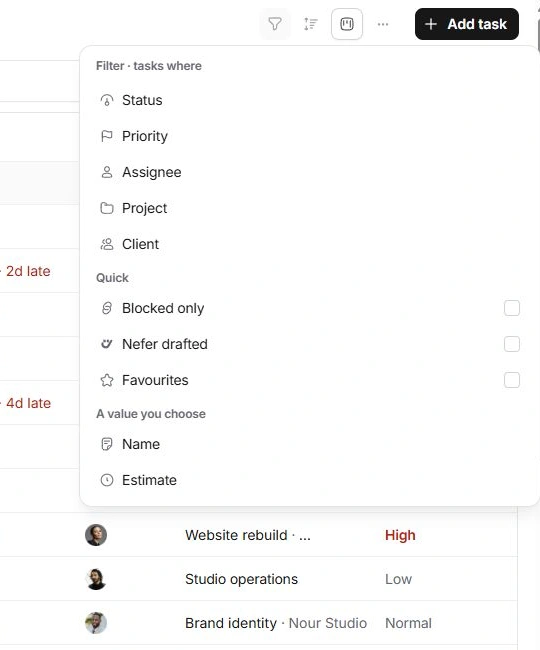
Check the task’s properties
Search by the task’s title or ID. If you can open it, check assignee, status, project, start and due dates. A change may have moved it into another work set or group.
For Calendar and Timeline layouts, navigate to the relevant date and check the placement property. A task outside the visible period can exist normally without appearing on screen.
Check recent changes
A record opened by Add task may be provisional while you name it. Confirm the intended title and defaults. A newly edited task can stop matching the filter you were viewing.
Use Undo if a recent deletion or bulk change caused the problem. If the task still cannot be found, include its title, ID and last known view in your support request.
Ask for help with enough context
- Give the task’s title or ID, selected sidebar view and layout.
- Describe the expected owner, date or status without including private file contents.
- Include the visible error text and the checks you already tried.
- If loading fails, use the offered retry. Avoid repeated copies of the same task as a workaround.
Need a clarification? Tell us what you were trying to do below.
Was this article helpful?
Need help with your workspace?
A support request lets the team reply to you directly.
Get help with this article