
Break work into subtasks
Keep a checklist inside a task, track its completion and choose nested or flat display.
On this page
Add smaller steps
- Open the parent task.
Choose a task whose outcome can be broken into a short sequence.
- Expand Sub-tasks.
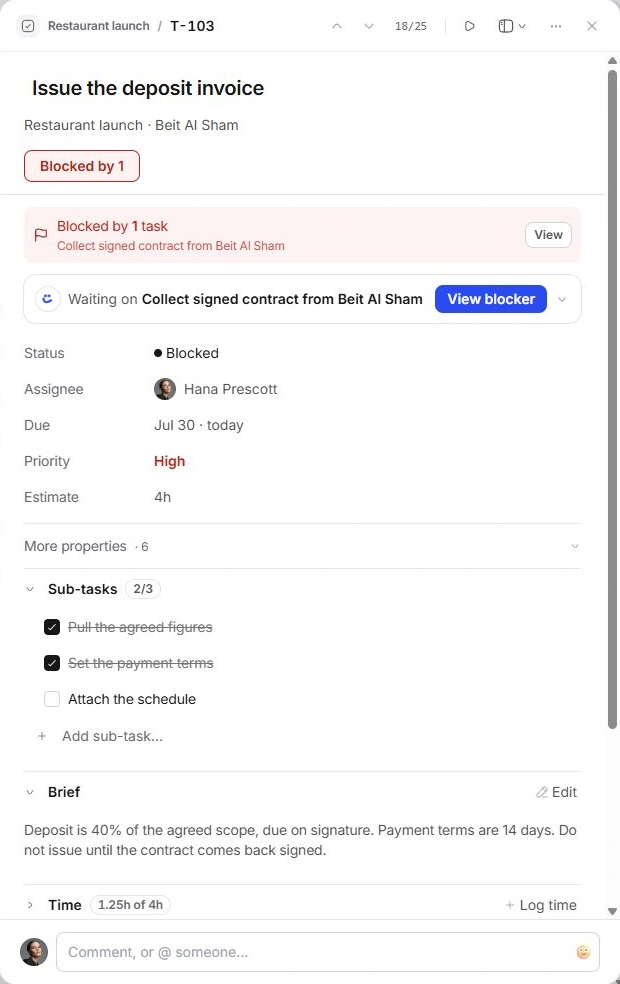
Use Add or Add a sub-task when the section is empty. Enter the action in Add sub-task… and confirm it.
- Repeat for the remaining steps.
Use action names that make completion obvious, such as Attach the approved schedule rather than Schedule.
- Tick work as it finishes.
The section and list row show completed versus total subtasks. Remove an item with its own remove control if it was added in error.
Read the checklist in List
The fraction beside a task, such as 2/3, shows checklist progress. Use Show the sub-tasks to expand the children without leaving List.
Display → Sub-tasks offers Nested and Flat presentations. This changes how the view reads the checklist; it does not create a second parent task. Keep the parent title and ID in view when working in a flat presentation.
Choose a subtask or a separate task
Use a subtask for a small check within one owner’s outcome. Use a separate task when the work needs its own record context, independent schedule or dependency.
Finishing every checklist item is not the same decision as completing the parent. Review the parent’s outcome, brief and any client approval before marking the task done.
If progress does not match expectations
- Check that you opened the right parent record.
- Expand the list row to see which items remain unticked.
- Switch between Nested and Flat display if the checklist is hard to follow.
- Correct the checkbox on the item itself; do not recreate the parent to reset a counter.
Need a clarification? Tell us what you were trying to do below.
Was this article helpful?
Need help with your workspace?
A support request lets the team reply to you directly.
Get help with this article