
Manage Calendar settings
Review connected sources, working hours, creation defaults and notifications in the Calendar’s own settings.
On this page
Open the right settings
Choose Calendar settings at the foot of the module sidebar. The sections are Calendars, Hours, New meetings, Nefer, Notifications and Booking pages.
These are Calendar controls, not a substitute for workspace membership or general account settings. Changes take effect in the current interface as you make them; read the change notice and use Undo when offered.
Understand source access
Meeting links explains which provider supplies a call’s link. Review the connection status and any notice shown by Connect Zoom before relying on that provider.
| Action or setting | Action and destination | What to check |
|---|---|---|
| Two-way | Calendars → Connected calendars | Describes a source intended to accept new meetings and editable events. |
| Read only | Calendars → Connected calendars | Displays source events without allowing moves or writes from here. |
| Busy only | Calendars → Connected calendars | Shows busy time without importing private event detail. |
| Shown | Connected calendar → its switch | Controls visibility in your schedule; it does not disconnect the source. |
| New meetings | Writable source → Send them here | Sets the intended destination used when creating a meeting. |
Set working hours
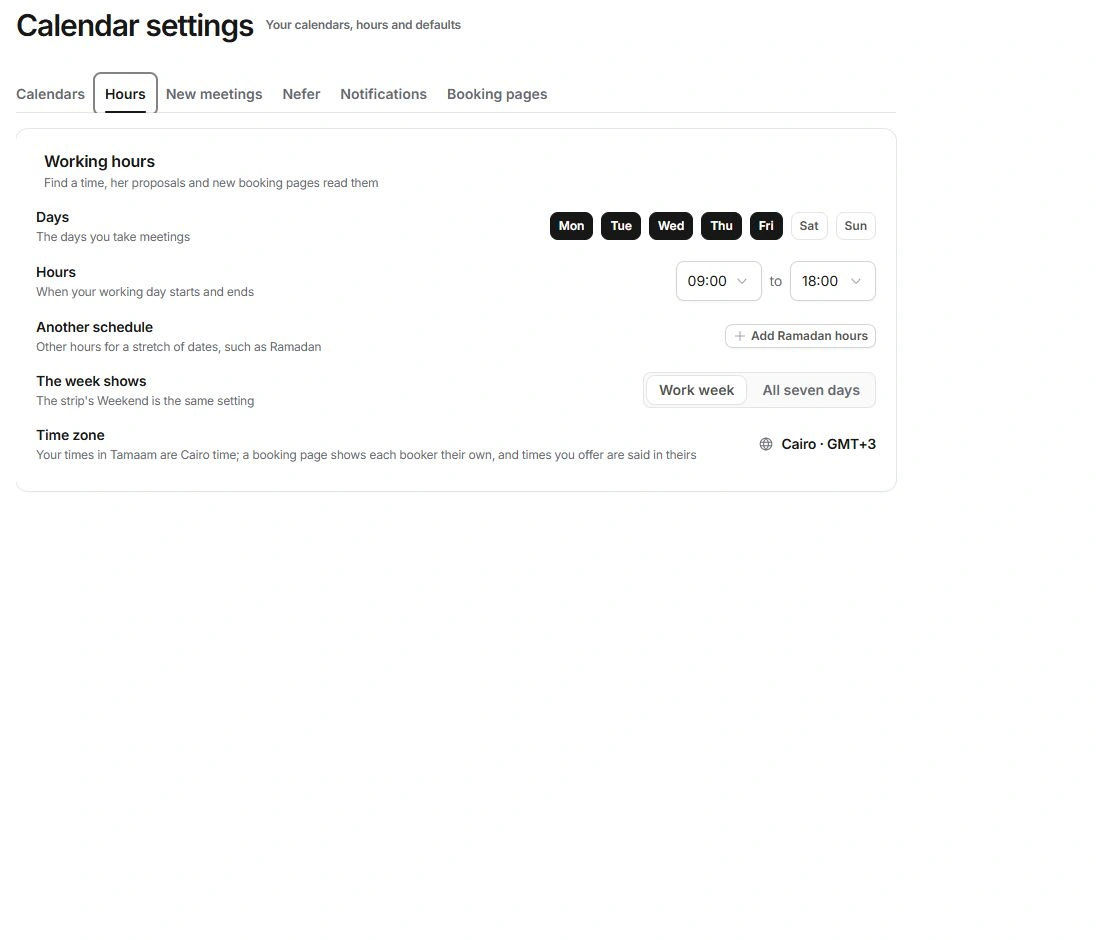
Hours includes working days, Starts at, Ends at and The week shows. Keep at least one working day. Another schedule supports an alternate date range, such as Ramadan hours; verify its dates and times instead of assuming a suggested period is correct.
The current interface labels its studio time as Cairo. A booking visitor can choose their own display zone. An individual booking page has availability rules of its own; review both levels when a slot is wrong.
Review creation and notification defaults
New meetings sets the starting calendar, location, reminder and other meeting defaults. Check these again in the creation dialog when a particular meeting differs.
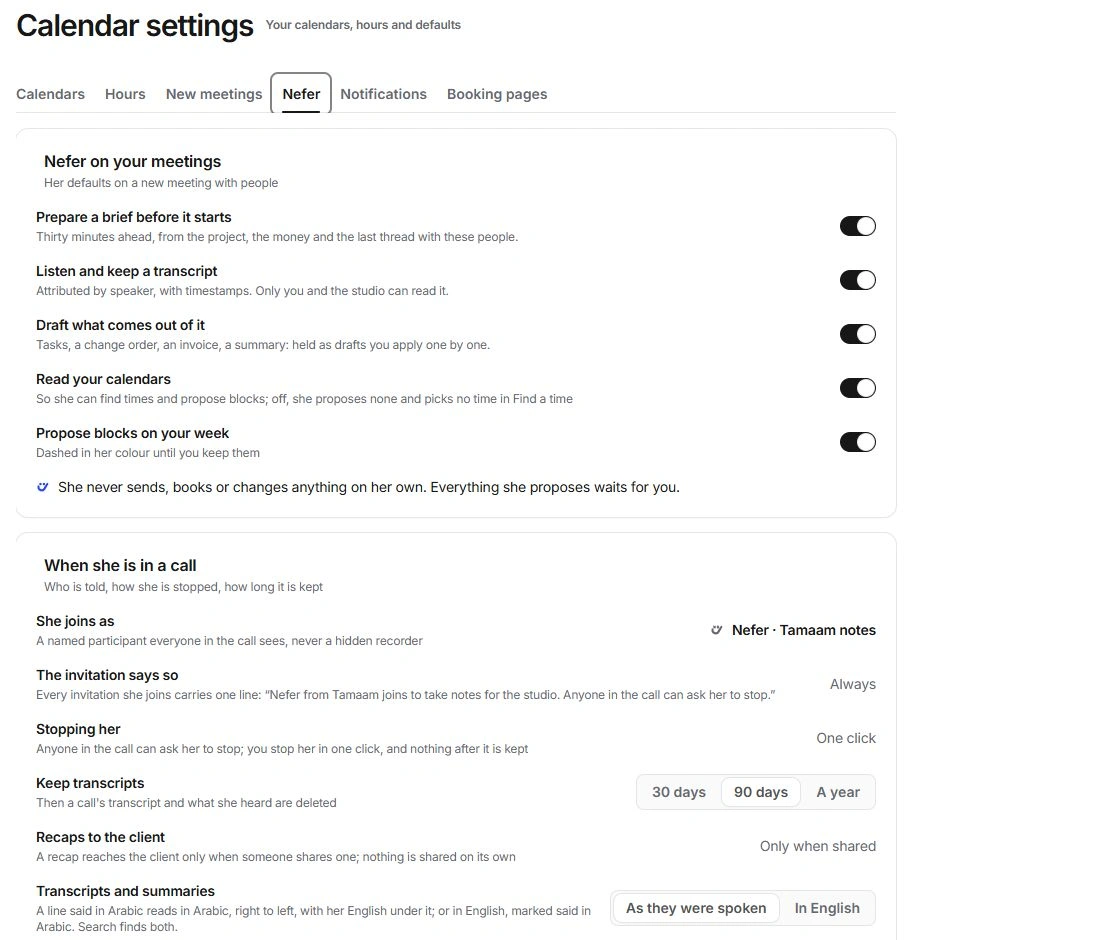
Nefer owns reading, preparation, listening and transcript preferences. Notifications controls the Calendar’s own notices. Booking pages sets the shared brand default; an individual page can choose its own look.
Need a clarification? Tell us what you were trying to do below.
Was this article helpful?
Need help with your workspace?
A support request lets the team reply to you directly.
Get help with this article