
Pause, close or cancel a project
Choose the right lifecycle action while preserving delivery and financial history.
On this page
Put work on hold
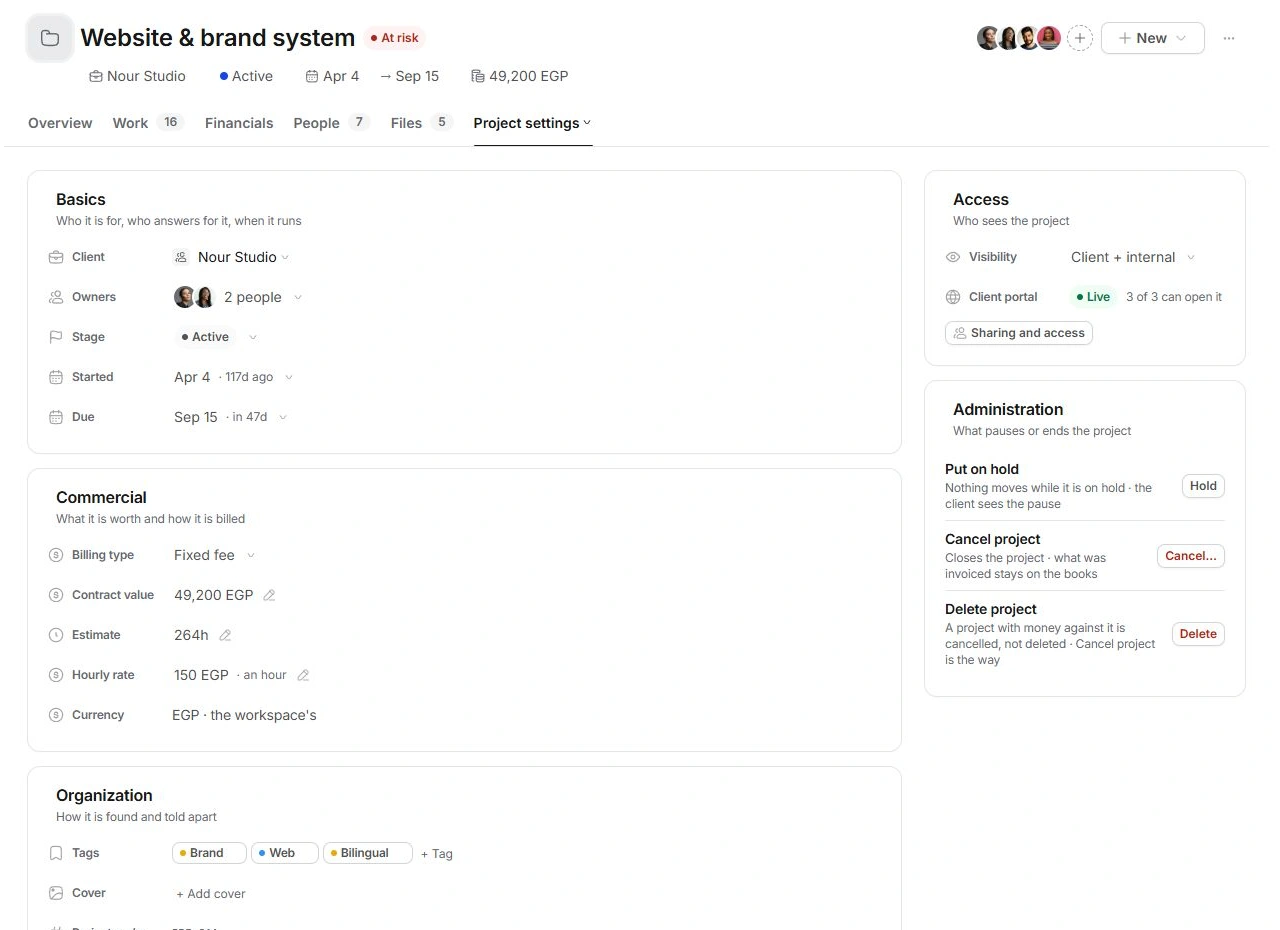
Use the project's More menu or Project settings → Administration → Hold for a temporary pause. Review the effect with the team and client. Holding preserves the dates; it does not automatically reschedule the plan. Use Take off hold to resume and review deadlines before assigning work.
Close completed delivery deliberately
Review unfinished tasks, deliverable approvals, milestone sign-off and the project's next stage action before marking the engagement delivered. Delivery completion is separate from collecting every invoice. Inspect Financials and the handover files as part of the closeout.
Cancel an engagement with history
Use Cancel project when the engagement is ending without completing its planned delivery. Read the confirmation and financial context before proceeding. Cancellation preserves invoices and the books; the project remains in Closed. Use Undo if offered immediately after an accidental action.
Check whether deletion is appropriate
A project with money against it must be cancelled rather than deleted. Deletion is for an eligible record whose removal is intentional. Check the code, client, linked work and any financial history first. Do not delete and recreate a project to change its stage or remove a warning.
Need a clarification? Tell us what you were trying to do below.
Was this article helpful?
Need help with your workspace?
A support request lets the team reply to you directly.
Get help with this article