
Connect your calendar
Connect the intended calendar and review what appears in your week.
On this page
Open Calendar connections
Open Calendar and its connection controls, or Settings → Modules → Calendar. Read the currently connected calendars and their visibility before adding another source.
Choose the right account
Choose Connect a calendar and select the supported provider. Check the account in the connection flow, then review the calendars and permissions it offers. Do not connect a different account simply because it is already signed in.
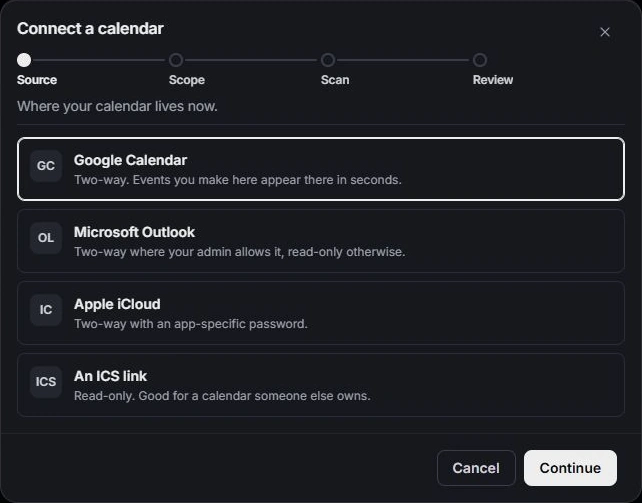
Review what is shown
In Scope, choose what may be read, how far back to read and two-way or read-only access where supported. Scan then Review lets you inspect and deselect events before the final import action. Back returns to the previous step; Cancel leaves the connection flow without confirming its import.
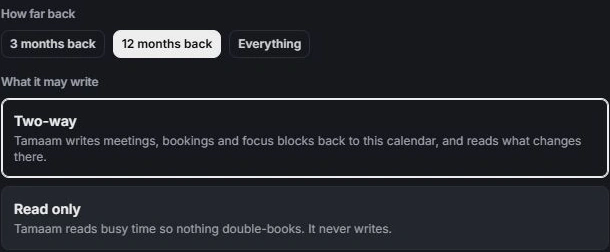
Check the resulting week
Return to Calendar settings → Calendars and confirm the connection state, Shown switches, New meetings destination and time zone. If a meeting appears missing, check the displayed range and calendar visibility before reconnecting or creating a duplicate event.
Need a clarification? Tell us what you were trying to do below.
Was this article helpful?
Need help with your workspace?
A support request lets the team reply to you directly.
Get help with this article