
Manage form settings
Control response limits, qualification, ownership, confirmations and protection in the form’s Settings.
On this page
Review Responses settings
Check Accepting, any close date or response cap, one-per-email behaviour, partial answers and the closed message. Closing intake does not remove earlier submissions. Reopening should be a deliberate decision after reviewing why the form was closed.
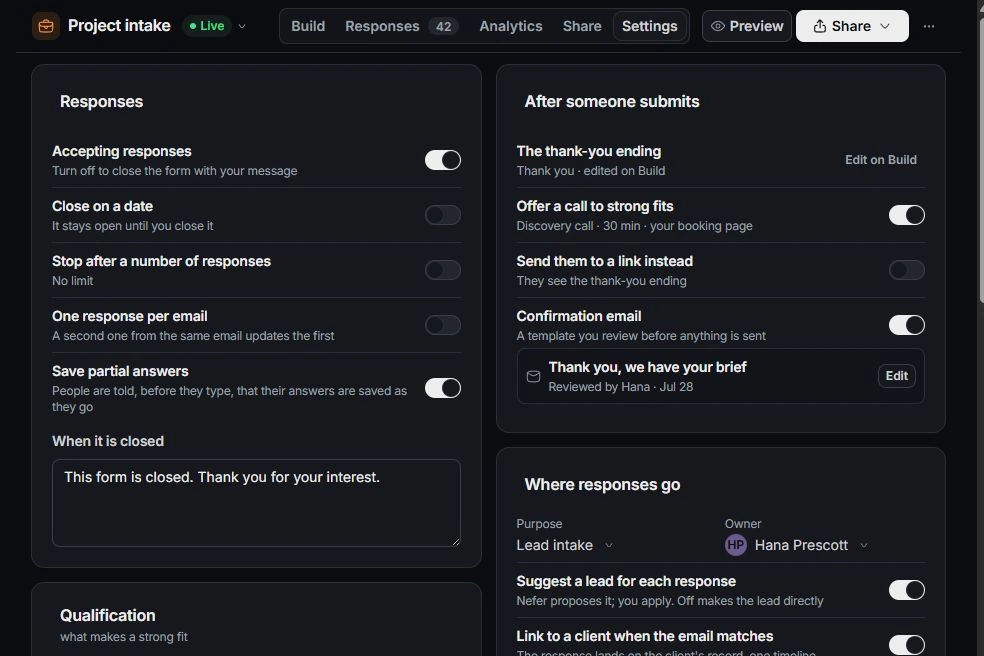
Review the completion experience
After someone submits can point to the ending in Build, offer a call for strong fits or use an onward link. Review the confirmation email template and intended recipient separately; configuring its content is not evidence of delivery.
Check qualification and ownership
Review fit conditions and Where responses go: purpose, owner, lead creation or suggestion, client matching and any distribution option. Check access or plan requirements before relying on a team-routing feature.
Check protection before sharing
Review consent and collection settings with the information you ask for. Consent text is part of the form definition and can require publishing an edit. Other form settings apply separately from definition versions. Test the intake limit and ending behaviour before distributing the link.
Need a clarification? Tell us what you were trying to do below.
Was this article helpful?
Need help with your workspace?
A support request lets the team reply to you directly.
Get help with this article