
Configure lead stages and fields
Find the pipeline’s stage and field controls, and make changes with the team’s reporting in mind.
On this page
Open pipeline settings
Open Settings → Modules and choose Pipeline. The module’s settings entry is another route to the relevant settings. Review the existing stage names, fields and rules before changing them.
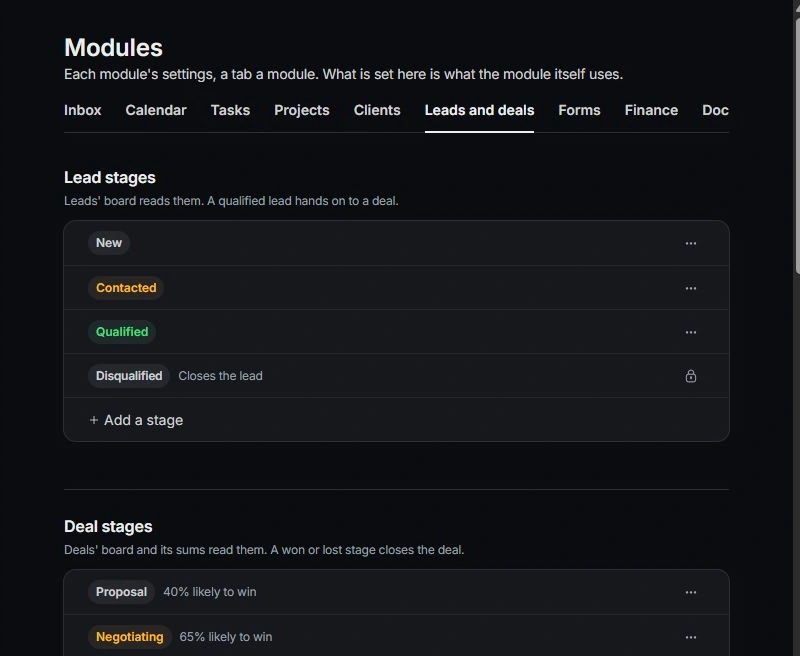
Review the stage model
Use stages to describe progress through qualification. Keep the meaning of New, Contacted, Qualified and Disqualified clear to the team, including permitted transitions and the deal handoff. A stage name should describe a business decision rather than an individual person.
Use the list controls to add a stage, rename one or move its order. A custom stage has a Counts as value that preserves the underlying workflow meaning. Completed outcome stages are protected; read the lock explanation. Removing a custom stage returns its records to the underlying stage it counted as.
Keep fields useful
Review the fields the team fills for each lead. Prefer a shared vocabulary for source and fit criteria; explain new fields and remove ambiguity before asking everyone to use them. Check whether a change affects saved views or qualification.
Custom fields can be added, renamed, reordered and removed from the shared list. Check whether a change affects every record of that type. Rename a useful field instead of adding a second field for the same information.
Verify a representative lead
Return to Leads and inspect an existing enquiry and the create flow. Check the board, filters and qualification controls. If the settings are unavailable, ask a workspace owner to review your access instead of changing another module.
Need a clarification? Tell us what you were trying to do below.
Was this article helpful?
Need help with your workspace?
A support request lets the team reply to you directly.
Get help with this article