
Read the project timeline
Compare committed checkpoints with forecast delivery and find the work causing a delay.
On this page
Open the timeline
- Open the project's Work page.
Choose the Timeline radio beside List.
- Read the milestone rows.
Each checkpoint has a committed date. Select its name to inspect the milestone.
- Read the deliverables below it.
Select a deliverable name to open its drawer and inspect its tasks and date.
Understand the marks
A diamond marks the milestone's committed date. A hollow diamond shows the forecast landing date when the team's pace places it elsewhere. The gap indicates early or late delivery; red identifies a late forecast. A client-input marker shows when a dependency is needed to keep the checkpoint's date.
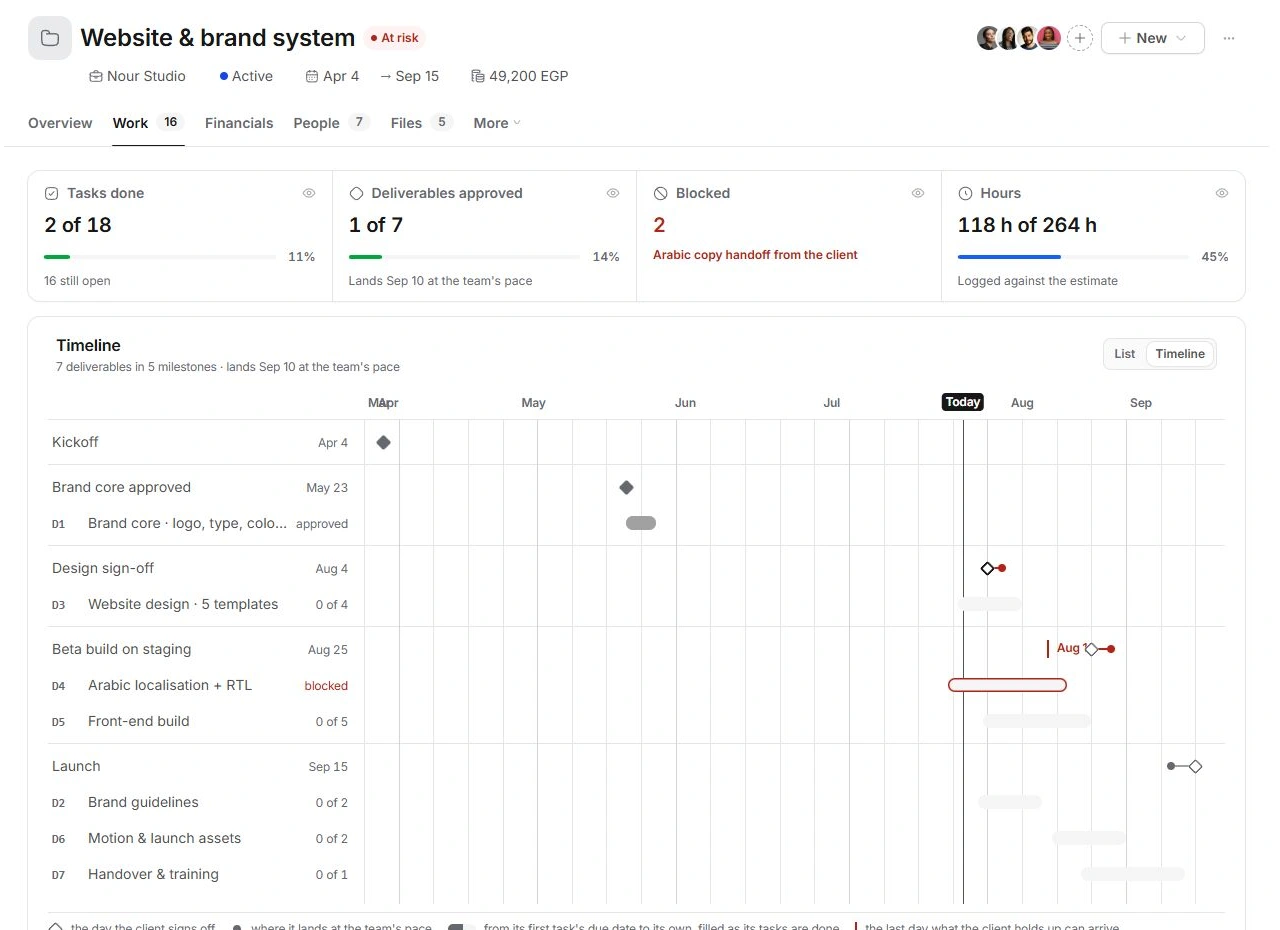
Read bars as a view of the records
A deliverable bar spans from its first task due date to the deliverable's due date and fills as tasks finish. It does not establish when work began. Red can indicate blocked or overdue work. Use the Today line and week divisions to orient yourself.
Make corrections in the underlying record
Open the milestone, deliverable or task to change its date, estimate or dependency. Check People if capacity explains the forecast. Do not move a committed deadline simply to make it agree with the forecast; agree the delivery change first and update the relevant date.
Need a clarification? Tell us what you were trying to do below.
Was this article helpful?
Need help with your workspace?
A support request lets the team reply to you directly.
Get help with this article