
Read the team’s workload
Compare estimated work with individual capacity and inspect the tasks behind a busy day.
On this page
Open Workload
- Choose + View → Workload.
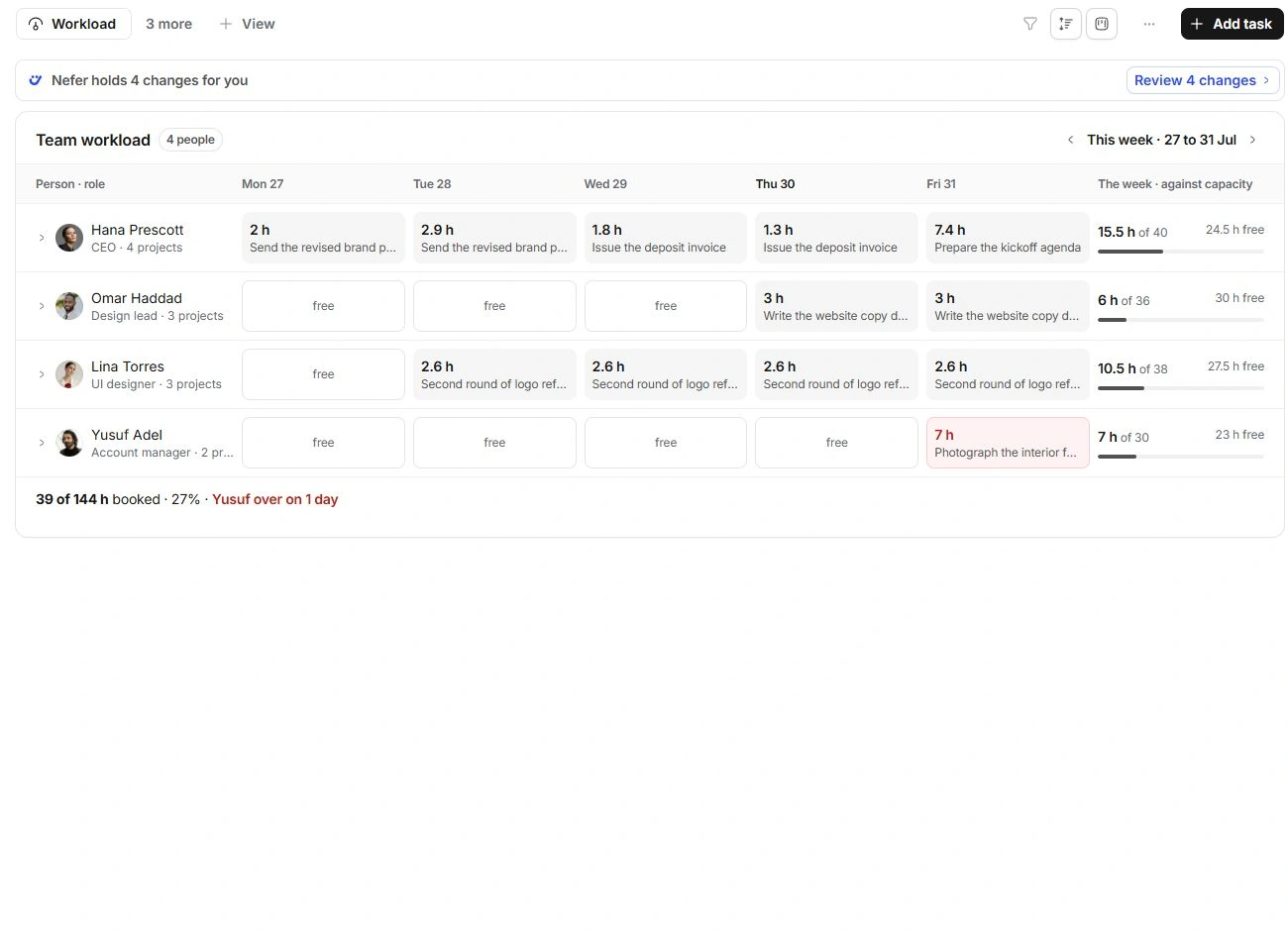
Workload is a layout of the task set, not a separate list of newly scheduled records.
- Check the week.
Use Previous week and Next week to choose the period you mean to review.
- Read each person’s row.
Daily cells name the work behind the hours. The week total compares assigned effort with that person’s capacity.
- Inspect before reallocating.
Open the relevant person, day or task control to read the work behind an overloaded period.
Understand the numbers
Workload uses estimates and scheduled task spans, while logged time records completed effort. These are not interchangeable measurements. A person’s own capacity can differ from the studio’s default.
The Capacity disclosure at the foot of the sidebar summarises the current week. It does not compare the entire backlog with a single week. A studio can have free hours overall while one person or one day is overloaded.
Make an informed change
Check whether the task belongs to the intended person and whether its dates and estimate are still realistic. Change the task’s assignee or dates through the relevant control, then review the updated workload.
Do not move a deadline solely to make the chart look balanced. Review client commitments, dependencies and the person’s actual availability. The Calendar Team view helps compare meeting availability, which is a different question from planned task effort.
If workload looks incomplete
- Check filters and the selected sidebar work set.
- Check the week, task dates and estimates.
- Check whether completed work is excluded.
- In a solo workspace, the interface may use My week and omit team-specific controls.
Need a clarification? Tell us what you were trying to do below.
Was this article helpful?
Need help with your workspace?
A support request lets the team reply to you directly.
Get help with this article