
Manage client settings
Review engagement, commercial details, organisation and linked records in one place.
On this page
Open the record’s settings
- Choose More → Client settings.
You can also reach settings from the client’s mark or More action menu.
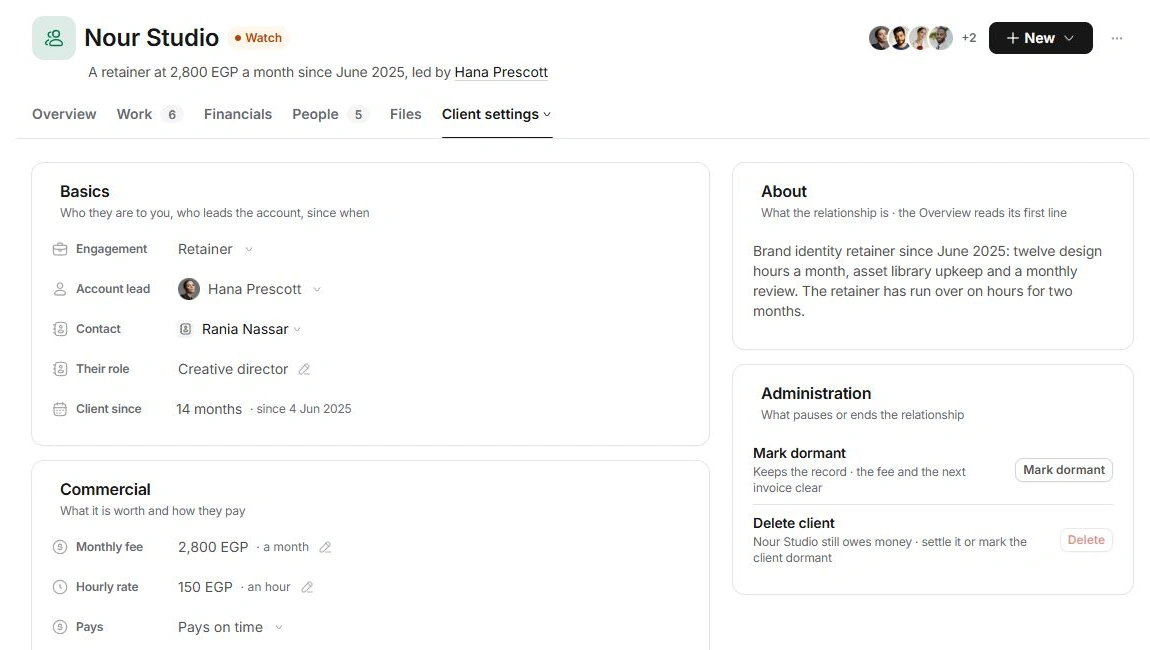
- Review Basics.
Check Engagement, Account lead, Contact, Their role and Client since. At least one account lead must remain.
- Review Commercial.
Check the fee, Hourly rate, Pays and billing details. Currency follows the workspace.
- Write About.
Give the team a useful account brief. Its opening line appears on Overview.
Organise the account
Organization holds industry, website, address, tags and the client code. Add a custom field only for information the team needs consistently. Fields added here can appear as columns in the Clients list.
Read relationships in Linked
Linked holds people, the originating lead, deals and projects. Filter by type, open the original record and use Link… when an existing relationship is missing. Check both sides before unlinking; removing a relationship does not cancel a project or reverse an invoice.
Review lifecycle actions carefully
Administration contains Mark dormant and Delete client. Dormancy clears the fee and next invoice while keeping the account. Deletion is refused while money is owed and leaves projects, deals and invoices in their own modules. Use the dedicated lifecycle guide before ending the relationship.
Need a clarification? Tell us what you were trying to do below.
Was this article helpful?
Need help with your workspace?
A support request lets the team reply to you directly.
Get help with this article