
Create a booking page
Configure a meeting offer, its hosts, duration and client experience before making it ready.
On this page
Start a page
- Open Booking pages → Pages.
Review existing pages before creating another offer with the same purpose.
- Choose New booking page.
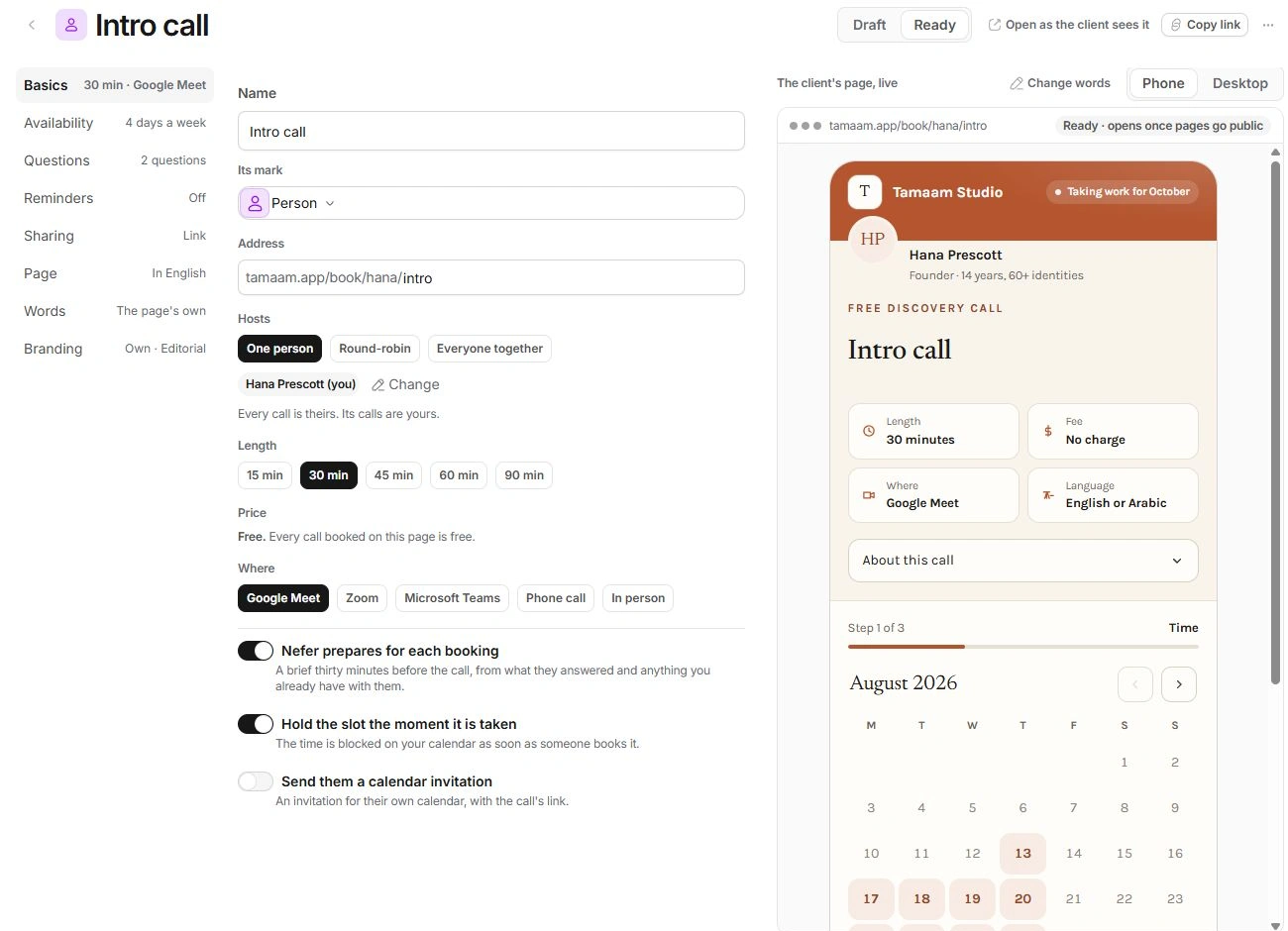
Open the new page’s editor and start in Basics.
- Set Name and Address.
Use a recognisable meeting name and a distinct address suffix. Correct any address validation error before sharing.
- Choose Hosts and Length.
One person gives the call to one host. Round-robin distributes calls. Everyone together requires the selected hosts. Check the team and plan controls available to your workspace.
- Choose Where and the booking behaviour.
Review the platform, Nefer preparation, slot protection and calendar-invitation choices.
Finish the editor sections
| Action or setting | Action and destination | What to check |
|---|---|---|
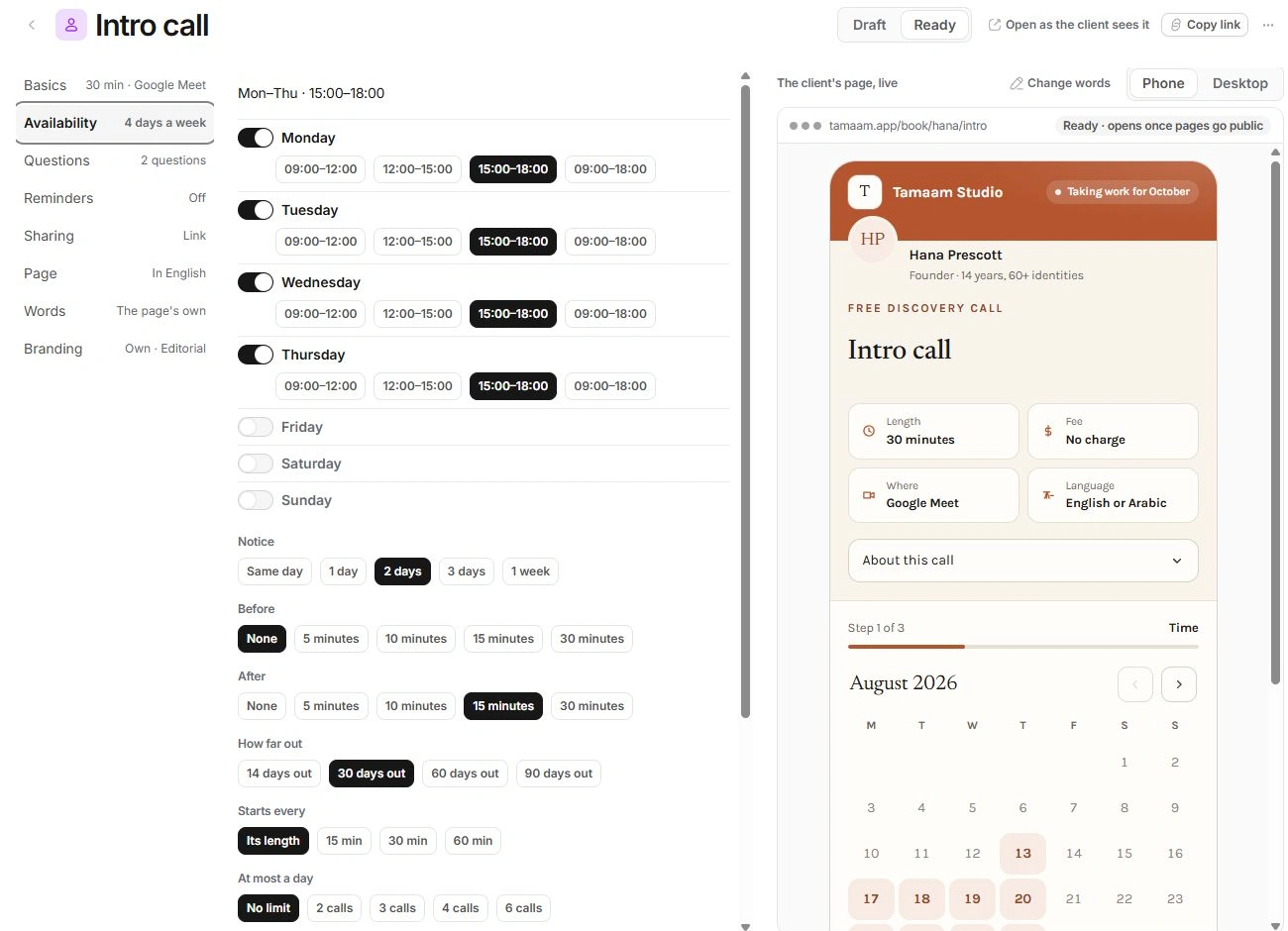
| Availability | Page editor → Availability | Set days, time ranges, notice, buffers, booking window and busy-time sources. |
| Questions | Page editor → Questions | Choose the intake questions or a Forms form and review required answers. |
| Reminders | Page editor → Reminders | Prepare the intended reminder and confirmation choices. |
| Page, Words and Branding | Page editor → the named section | Review the visitor-facing content, language, rewritten labels and appearance. |
| Sharing | Page editor → Sharing | Review the reserved link, QR, embed and signature options. |
Understand Draft and Ready
Keep the page in Draft while you prepare its details. Review the meeting offer, availability and visitor experience before marking it Ready.
Changes in the editor update as you make them; there is no separate Save wizard. Use Undo for a mistaken setting and inspect the client preview before leaving the page. Review Price separately from any budget question; a budget answer records information about the enquiry.
Check the page as a visitor
Use the Phone and Desktop preview sizes, then Open as the client sees it for the full visitor flow. Check available times, required questions, language and confirmation content.
Review the page’s sharing settings and booking link before sending it to clients.
Need a clarification? Tell us what you were trying to do below.
Was this article helpful?
Need help with your workspace?
A support request lets the team reply to you directly.
Get help with this article