
Turn work into payment
Connect logged effort and costs to approval, a reviewed invoice, recorded payment and the right follow-up.
Tasks / Projects → Time approval → To bill → Invoices → Payments
Before you start
- Confirm the client, fee basis, rates, payment terms and relevant project.
- Keep time and costs on the records where the work happened.
- Check existing invoices and payments before creating or recording another one.
What you’ll have at the end
The invoice can be traced to its work, payments are attached to the right balance, and any outstanding amount has a clear next action.
Follow the workflow
Log time and classify project costs
Who takes this step: Task assignee or project contributor
Log time on the relevant task or project, with the correct date, duration and description. Check billable status and the intended rate. Keep the entry with the work rather than entering the same time again in Finance.
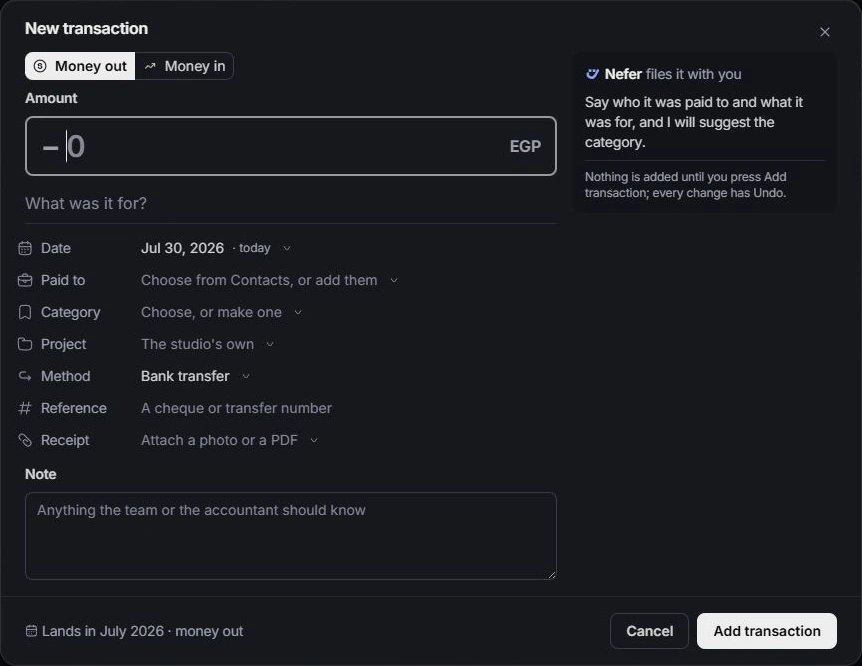
Record project costs with the payee, date, category and supporting receipt. Review Rebill when a cost should go on the client’s invoice. A retainer, fixed fee and time-and-materials engagement have different billing context; check the commercial agreement before adding a charge.
Before moving on
Time and costs name the correct work and their billing treatment is understood.
Review time before billing it
Who takes this step: Project owner or authorized approver
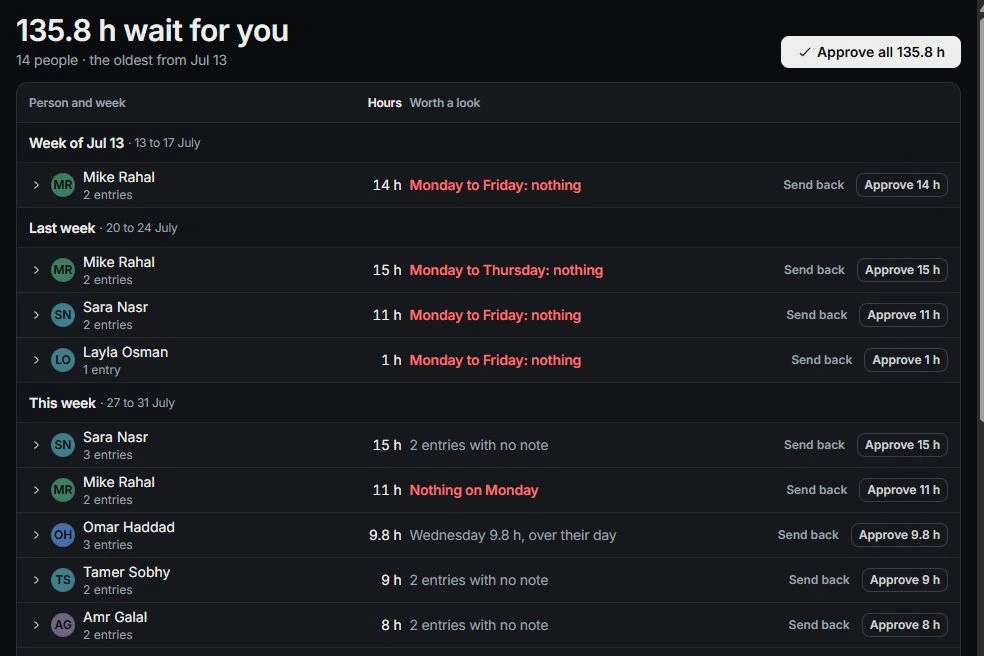
Open Finance → Time → To approve. Inspect the person, week, project, task, hours and description. Approve the intended entry or group after reviewing it, or send it back with a clear explanation of the correction needed.
Approved entries are locked for their author; the approver reopens them when necessary. Follow Logged in to the owning task or project when correcting its source. Approval makes eligible time available to billing; the invoice is the next separate step.
Before moving on
Eligible billable time is approved, and unclear entries have been sent back for correction.
Review the client’s ready-to-bill work
Who takes this step: Finance or account owner
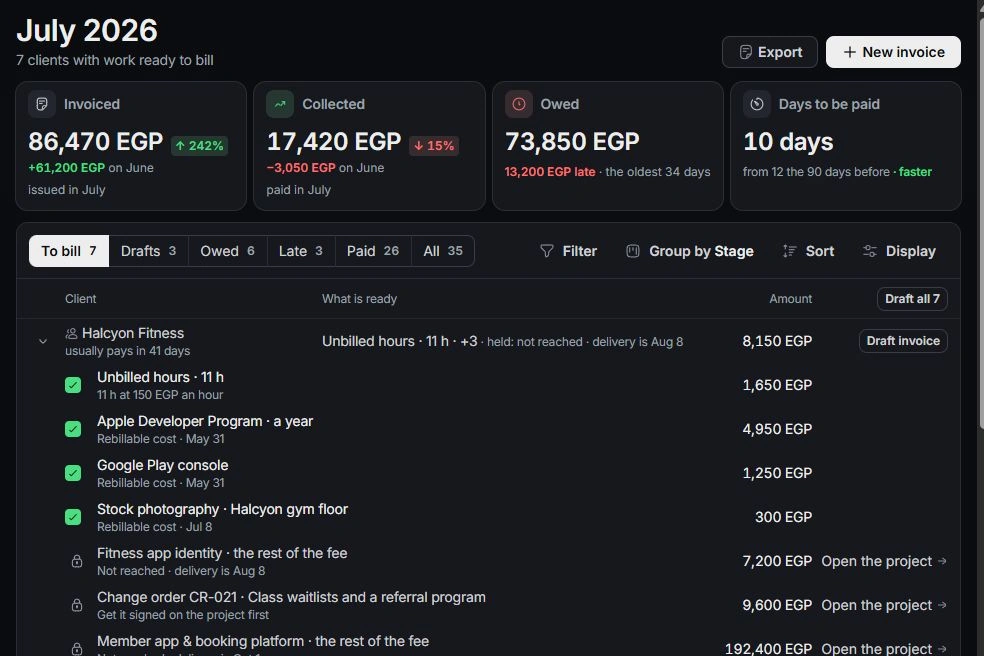
Open Finance → Invoices → To bill and expand the client. Inspect ready lines, held lines and their explanations. Use the provided source link to resolve an approval or signed-change-order hold.
Tick only the work belonging on this invoice. Review retainers, milestone fees, approved time and rebillable costs together so the client is charged once for the intended work. If a line is missing, check whether it is already on another invoice before adding a manual duplicate.
Before moving on
The selected lines reflect the intended billing period and have no unresolved hold.
Prepare and review the invoice
Who takes this step: Finance owner and required reviewer
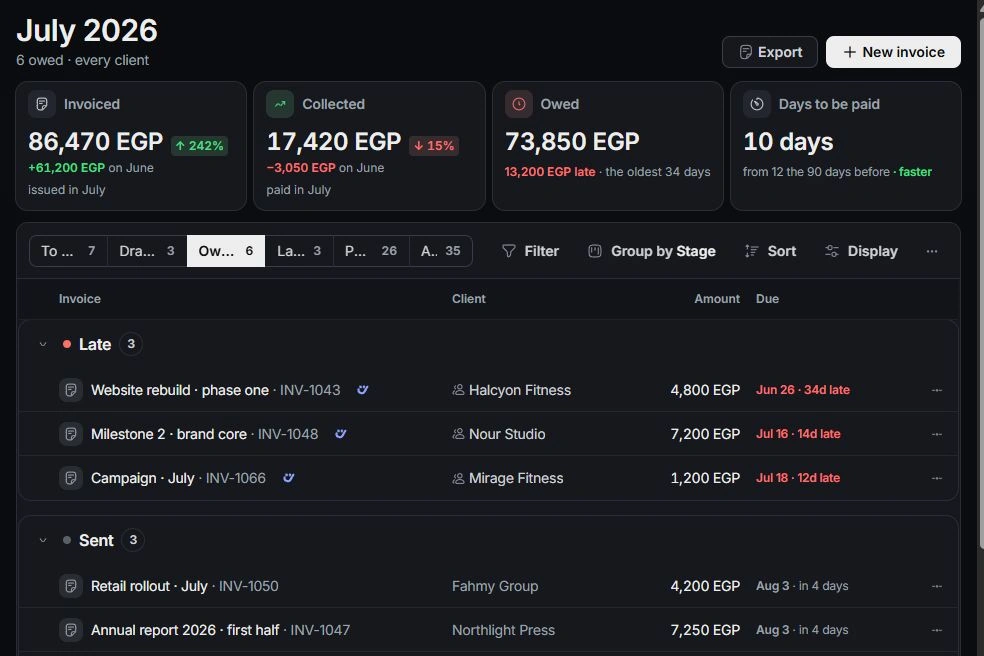
Choose Draft invoice for the selected work, or New invoice when starting separately. Check the client, descriptions, hours, rates, amounts and additional lines. Review issue date, payment terms and the resulting due date.
Inspect the document preview and keep a draft for internal review when needed. Check any earlier deposit or linked invoice before billing the remaining contract amount. Continue through the invoice’s sending workflow only after its facts and recipient are ready.
Before moving on
The reviewed invoice matches the client, selected work, terms and amount due.
Record money received against the invoice
Who takes this step: Finance owner
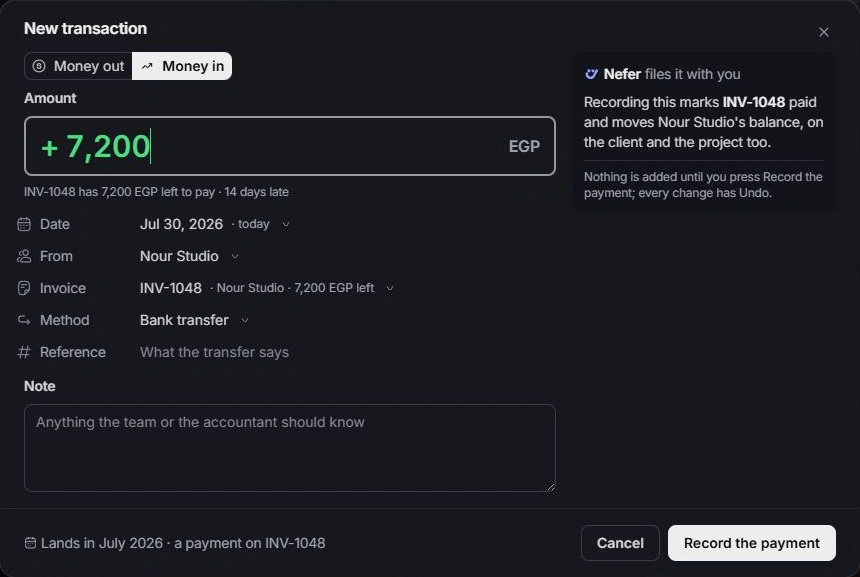
Open the outstanding invoice and read Payments and its current balance. Check that the receipt has not already been recorded, then choose Record payment. Review amount received, date, payer, method and reference.
A part payment leaves the unpaid remainder outstanding. When starting from New transaction → Money in, explicitly select the intended invoice. Record the actual receipt, then reopen the invoice to verify its payment history, status and remaining balance.
Before moving on
The payment is linked to the correct invoice and the remaining balance reconciles.
Follow up on the remaining amount
Who takes this step: Account owner or finance owner
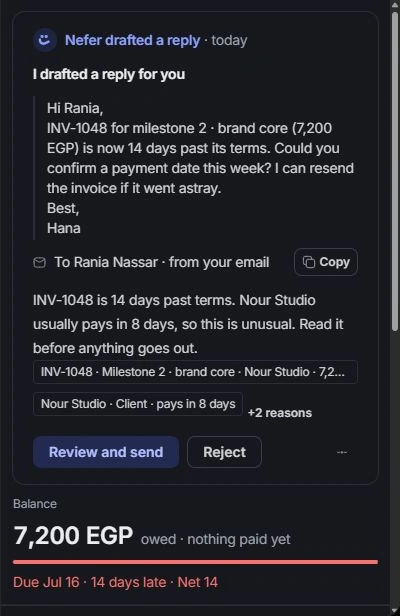
For an outstanding or late balance, open the invoice’s reminder history before preparing another message. Use Send reminder or the relevant draft action, then review the recipient, amount, promised payment date and tone in the Inbox composer.
Record the result of the conversation and assign any next action. Raise a payment question in a linked client meeting when appropriate. A reminder draft, a sent follow-up and a recorded payment are distinct events; verify the one you need on its owning record.
Before moving on
Any unpaid balance has a specific owner and next follow-up, without duplicate reminders.
Review the client and project outcome
Who takes this step: Finance owner and project lead
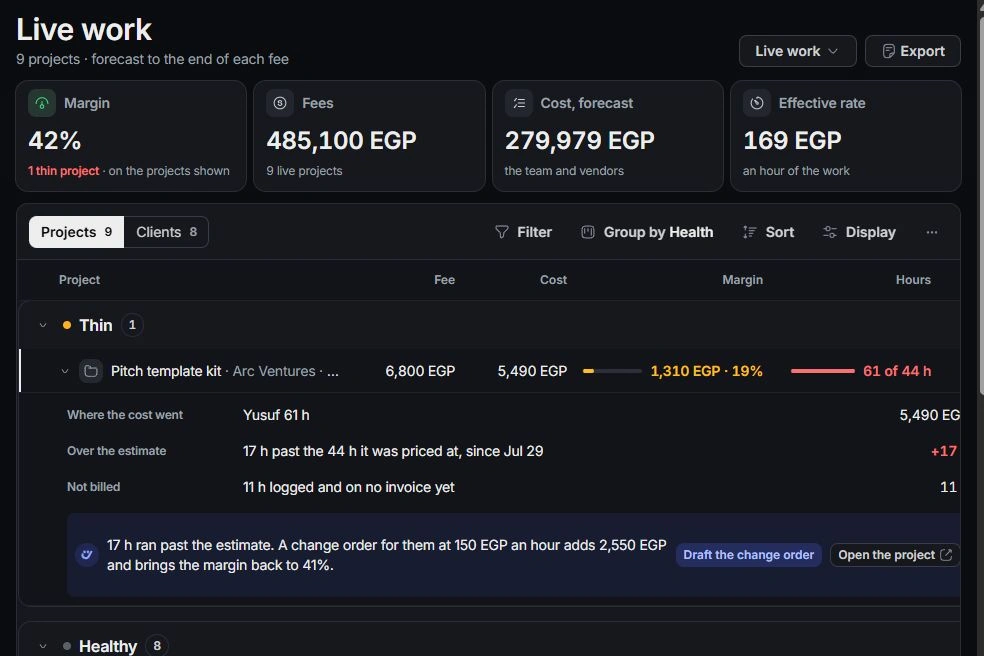
Return to the client’s financials and the project’s Financials to check the wider relationship. Open Finance Overview and Profitability to review collected money, outstanding balances and the cost of delivery on the appropriate basis.
Check that approved time, invoice lines and payments reconcile to their source records. Resolve remaining holds and accidental duplicates before treating the billing cycle as complete. Keep a remaining balance visible until it is settled or otherwise handled through the appropriate financial workflow.
Before moving on
The work, invoice and recorded receipts agree, with outstanding items still visible.
Check the complete handoff
- Selected work appears on the intended invoice without duplicate billing.
- Recorded receipts reconcile to the invoice’s remaining balance.
- Outstanding money has a reviewed follow-up and a responsible person.
If the workflow gets stuck
Billable work is missing
Check approval, billable state, rates, project/client links and existing invoice lines. Follow the held line’s explanation instead of logging the work again.
An invoice or balance looks wrongA payment did not reduce the expected balance
Inspect the transaction’s invoice link, amount and date, and check for partial or duplicate receipts. Correct the owning record or use the immediate Undo.
Record a paymentFor help with your workspace, contact the team with the workflow name, the step and what happened.
Contact support