
Navigate the shared Inbox
Choose the right inbox and folder, understand attention counts and find the conversation you need.
On this page
Start with the right inbox
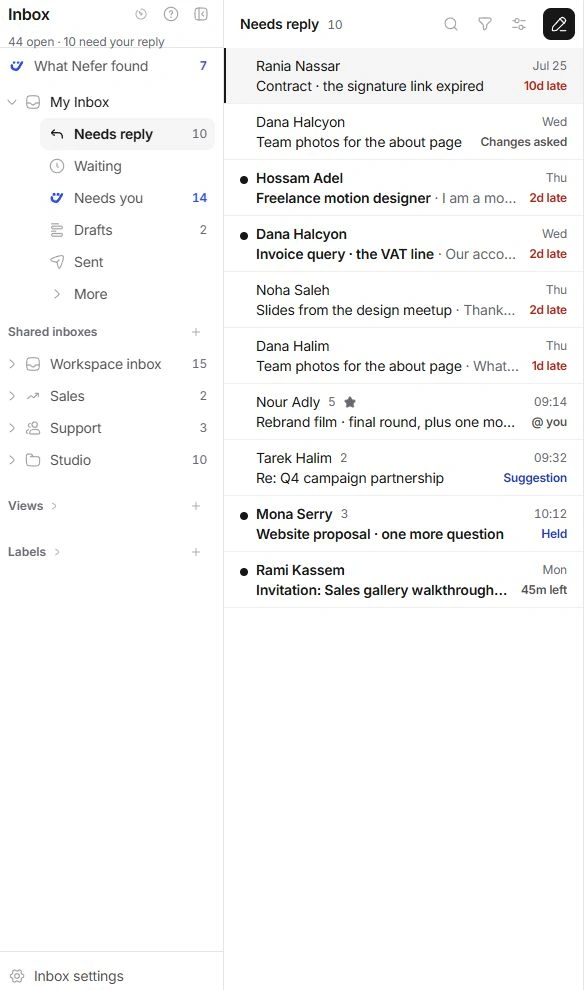
My Inbox focuses on conversations assigned to you, watched by you or mentioning you. Workspace inbox gives the broader workspace queue you can access. Shared inboxes, such as Sales or Support, hold a team’s conversations. Choosing an inbox changes the work set; it does not copy the messages.
Expand the chevron beside an inbox to reach its folders. Needs reply is work waiting on the team, Waiting is work waiting on the other side, and All shows both. An inbox can open on All when there are no replies waiting.
Understand the attention folders
Needs you gathers decisions: mentions, handovers, review requests and Nefer’s proposals. It is broader than unread mail. Drafts holds unfinished messages; Sent shows messages already written by the relevant person or team. My Inbox folders and a shared inbox’s folders can therefore contain different results.
- Use More under My Inbox to reach additional folders, including snoozed or completed work.
- What Nefer found is a separate review of possible client, lead and contact records.
- A count describes that destination, not every message your company has received.
Open and move between conversations
- Choose a conversation row.
Read the subject, person, latest activity and attention labels before opening it.
- Read beside the list.
The reader keeps your place in the queue. On smaller screens or List only layout, use Back to return.
- Use the keyboard when useful.
j and k move through conversations; o opens and u returns. These keys yield while you type or work inside a menu.
When the queue looks empty
Check which inbox and folder you selected, clear the search and filters, and look in Done or Snoozed before creating a new conversation. A shared inbox may also be hidden by your sidebar layout or unavailable to your account.
Need a clarification? Tell us what you were trying to do below.
Was this article helpful?
Need help with your workspace?
A support request lets the team reply to you directly.
Get help with this article